
-May-13-2026-08-19-03-4811-PM.webp)
While creating content manually comes with the advantage of right-now relevance, it also requires site owners to constantly track trends, then craft relevant posts. But what happens if site owners aren’t online? Scheduled posts can help.
There’s a solution for many of the problems above: Scheduled Facebook posts.Facebook’s scheduling tool lets business page admins publish posts on a Facebook Business Page at a set date and time. By scheduling a few posts in advance each week, teams can keep normal work hours while freeing up time for brainstorming new social media strategies.
Not sure how to schedule an engaging Facebook post? We’ll walk you through how to do this, as well as how to solve common scheduling issues below.
Table of Contents
- How to Schedule a Post on Facebook
- How to Schedule a Shared Post on Facebook
- Why Can’t I Schedule a Post on Facebook?
- Frequently Asked Questions About How to Schedule Facebook Posts

TL;DR: Write your post in Meta Business Suite, hit Schedule, pick a time, done.
To schedule Facebook posts, go to your Facebook Business Page or Meta Business Suite, create your post, choose the Schedule option, set the publish date and time, and confirm. If scheduling doesn't work, check that you're using a Business Page, have the right permissions, and aren't trying to schedule unsupported content types.
How to Schedule a Post on Facebook
- Log into your Facebook Business page.
- Click on Publishing Tools.
- Create a compelling post.
- Set your publish time.
- Consider putting spend behind your content.
- Track and adjust your schedule.
- Consider cross-promotional scheduling.
- Embrace scheduling tools.
- Don't over schedule.
- Compare your scheduled content to the competition.
Step 1: Log into your Facebook Business page.
The first step to schedule a Facebook post is to make sure you’re logged into your business page. Currently, personal pages don’t offer the same range of publishing tools.
Step 2: Click on “Publishing Tools.”
In the left menu of your business Facebook page, click on “Publishing Tools.” This will bring up a list of all published posts, as well as options to see your scheduled posts, drafts, and .
Step 3: Create a compelling post.
Select “Create Post” at the top of your post. Write your post in the provided text box and add any images or links — you’ll get a real-time preview of the post as you create it to help identify any potential issues.
As you draft your post copy, don’t over-complicate your scheduled posts. Design them the same way as on-demand posts — be engaging, personable, and relevant.
Step 4: Set a publish time.
When you’re satisfied with your new post, select “Schedule” in the drop down menu under News Feed. This will open a box that allows you to pick an exact date and time.
Step 5: Consider putting spend behind your content.
Worth noting? You can also increase the reach of your Facebook post by paying the social media site to advertise it for a specific length of time. Select the “Boost” option next to “Publish” to select your budget, target audience, and desired post duration.
To learn more about how to promote Facebook content and run ads, read our guide on how to run Facebook ads.
Step 6: Track and adjust your schedule.
The Publishing Options menu lets you keep track of what you’ve already posted and when new posts will be published. Check it regularly to make sure scheduled posts still make sense.
For example, if you’ve suddenly run into production or supply issues, you might want to unschedule posts about big sales on lower-stock items.
Step 7: Consider cross-promotional scheduling.
It’s also worth noting that scheduled posts don’t automatically trigger any other notifications — such as Tweets. If you want Facebook posts to go out in tandem with other social media posts, ensure you know your publish dates so you can boost the impact of cross-platform promotions.
helps marketing teams schedule Facebook, LinkedIn, and X posts from one place.
Step 8: Embrace scheduling tools.
While you can create and manage all scheduled posts manually, this can get very complicated very quickly as the impact of your Facebook page expands.
As mentioned above, it’s worth considering social media management tools like or to help streamline scheduling while you focus on the creation of more compelling, on-demand content.
Step 9: Don’t over-schedule.
You may think you can schedule all of your posts for weeks at a time, and then not deal with social media for days. But, that’s far from the truth.
If you’re making multiple scheduled posts per day, customer interest can quickly dry up as your page starts to look more like a sales vehicle than a social platform. While it’s worth calling out the launch of new products or big business changes, don’t over-schedule yourself.
Step 10: Compare your scheduled content to the competition.
Want to schedule posts ahead of time, but worried about inauthentic or robotic copy? Look at what your best competition is doing.
Check out the frequency and content of their posts and use that knowledge to improve your social efforts.
The goal of analyzing your competition isn’t to create carbon copies, but rather take a cue from their scheduling to make the best use of social platform potential.
Interested in scheduling a post that shows Facebook content already shared by a brand partner or company you’re working with? Learn how to schedule shared posts below.
How to Schedule a Shared Post on Facebook
- Go to the post you want to share and click the three dots.
- Click the Copy link.
- Go to Post Publishing Tools.
- Go to Settings to access the older version of the tool.
- Insert the link into the post box.
- In the drop-down box under News Feed, select Schedule.
1. Go to the post you want to share and click the three dots
This will show you all of the settings related to a post. Please note that some posts, such as those on personal Facebook accounts might have different settings options and might not be shareable.
2. Click “Copy link”
3. Go to Post Publishing Tools
Hit the “Create post” CTA to open a post creation page.
4. Go to Settings to access the older version of the tool
Here’s where things get tricky. When we tried sharing a post with Facebook’s new tool, the previews looked a bit glitchy. For the best preview options and to ensure the post will look normal, click the settings icon on the lower left to access the tool’s older version while it still exists.
5. Insert the link into the post text box
You should instantly see the business’ post appear below the text box. If you’d like to share a caption about that post, you can also include it as this 黑料吃瓜网 blogger did below:
6. In the drop-down menu under News Feed, select “Schedule”
This will allow you to schedule a post similarly to how you schedule your own.
Why Can’t I Schedule a Post on Facebook?
Running into problems scheduling your post on Facebook? There are a few common reasons this happens:
- You’re on the wrong account: You can only schedule posts from a Facebook Business Page, not a personal profile.
- You don’t have the right permissions: Page admins control scheduling access. If you don’t have admin permissions, Facebook won’t show the scheduling option.
- You’re in the wrong tool: Facebook has moved scheduling features over time, so the button may no longer appear in the same place.
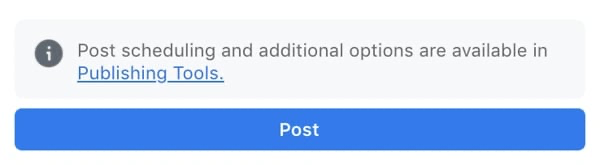
- You’re starting from the front page composer: If the scheduling option doesn’t appear there, Facebook may direct you to Publishing Tools or Meta Business Suite instead.
What can’t be scheduled on Facebook?
Unfortunately, you can’t schedule everything you publish on Facebook. Here’s what that looks like in practice:
- Can be scheduled: posts with links, photos, and videos
- Can’t be scheduled: photo albums, polls, and events
- Also can’t be scheduled: Facebook Stories
Frequently Asked Questions About How to Schedule Facebook Posts
Can I schedule Facebook posts on my phone?
Yes. You can schedule posts from mobile, but the steps depend on whether you’re using the Facebook app or Meta Business Suite. If mobile scheduling isn’t available in your current workflow, use Meta Business Suite on desktop instead.
How do I edit a scheduled Facebook post?
To edit a scheduled Facebook post, open your scheduled posts in Meta Business Suite or Publishing Tools, select the post, and update the copy, media, or publish time. Save your changes to keep the updated schedule.
How do I delete a scheduled Facebook post?
Go to your scheduled posts, choose the post you want to remove, and select the delete option. This cancels the post before it goes live.
What timezone does Facebook use when scheduling posts?
Facebook typically uses the timezone set for your Page or business account environment, so double-check the scheduled time before publishing. If your audience is in another region, verify that your posting time matches when they’ll actually be online.
Can I schedule Facebook posts for free?
Yes. Facebook offers native scheduling for Business Pages through its own tools, so you don’t need a paid third-party platform to schedule basic posts.
Does scheduling Facebook posts affect reach?
Scheduling itself doesn’t automatically reduce reach. Performance still depends more on factors like relevance, timing, engagement, and the quality of your post.
Creating an Effective Facebook Schedule
Scheduling Facebook posts is a great way to boost your business impact and drive user engagement.
Remember a few scheduling best practices:
- Keep your content simple and relevant
- Don’t over-schedule your page
- Cross-promote posts when it makes sense
- Use scheduling tools to manage content at scale
Facebook Marketing





![How to Design an Engaging Facebook Business Page [+ Tips]](https://53.fs1.hubspotusercontent-na1.net/hubfs/53/facebook-business-page.webp)
![22 Facebook Stats to Know in 2023 [+黑料吃瓜网 Data]](https://53.fs1.hubspotusercontent-na1.net/hubfs/53/Untitled%20design%20(8)-1.jpg)
![How to Create a Facebook Group for Your Business [+ Why You Should]](https://53.fs1.hubspotusercontent-na1.net/hubfs/53/Copy%20of%20Featured%20Image%20Template%20Backgrounds-Jun-30-2023-05-58-51-2746-PM.png)
![Facebook Insights: A Beginner's Guide [+ Step-by-Step Instructions]](https://53.fs1.hubspotusercontent-na1.net/hubfs/53/Untitled%20design%20(38).jpg)